
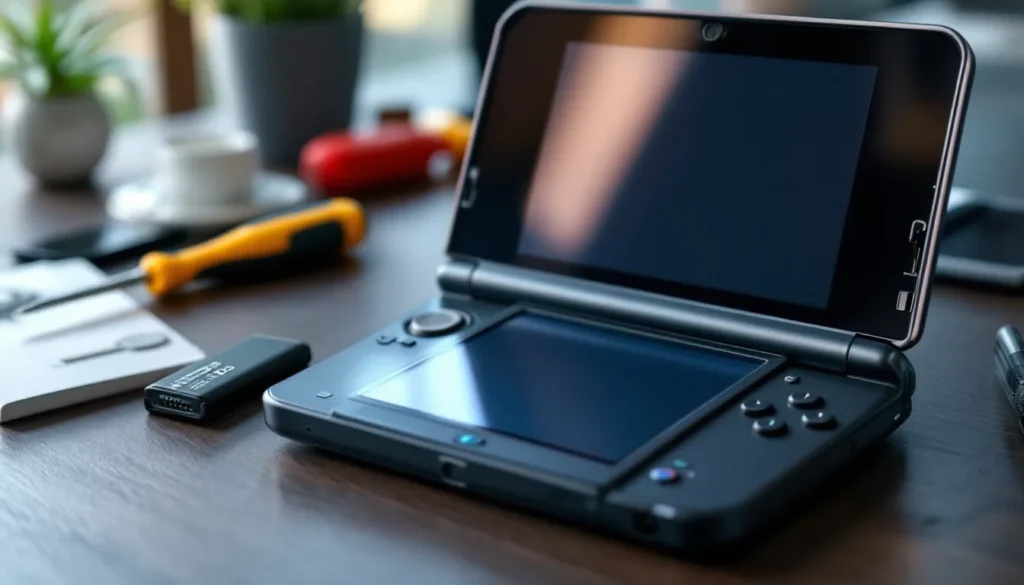
The Nintendo 3DS family might not be getting new releases anymore, but millions of players are still grinding through Pokémon, Fire Emblem, and classic Zelda titles on their handhelds. The catch? That battery you’ve been charging since 2011 is probably on its last legs. If your 3DS dies halfway through a Nuzlocke run or won’t hold a charge during your commute, you’re not alone.
Battery degradation is inevitable with lithium-ion cells. After years of charge cycles, even well-maintained 3DS systems start showing their age. The good news? Replacing a 3DS battery is straightforward, affordable, and doesn’t require soldering skills. Whether you’re troubleshooting inconsistent charge times, dealing with a swollen battery, or just want to squeeze a few more years out of your system, this guide covers everything from diagnosing issues to choosing the right replacement and maximizing battery life going forward.
Key Takeaways
- Nintendo 3DS battery degradation after 500–800 charge cycles is inevitable, but replacement is straightforward and affordable without requiring soldering skills.
- Each 3DS model uses different battery specifications (1,300–1,750 mAh), so verify your part number before purchasing a replacement to ensure compatibility.
- Common signs of a failing 3DS battery include rapid discharge, inconsistent charge indicators, extended charging times, and physical swelling—rule out charger and port issues first.
- Replacing a 3DS battery requires only basic tools (Phillips screwdriver, plastic spudger) and takes 10–15 minutes, with no soldering or complex disassembly needed.
- OEM (Original Equipment Manufacturer) batteries offer better quality and longevity, while third-party options are cheaper but may have inflated mAh ratings and shorter lifespans.
- Enable Power-Saving Mode, reduce screen brightness, disable 3D, and turn off wireless to extend battery runtime by 10–20%, plus avoid leaving the system plugged in 24/7 to prevent degradation.
Understanding the Nintendo 3DS Battery System
The 3DS family uses rechargeable lithium-ion batteries, but not all models share the same specs. Understanding your specific system’s battery is the first step to diagnosing problems or planning a replacement.
Battery Specifications Across 3DS Models
Each 3DS variant shipped with different battery capacities, directly impacting playtime:
- Original Nintendo 3DS (CTR-001): 1,300 mAh battery (CTR-003). Compact but limited runtime.
- Nintendo 3DS XL (SPR-001): 1,750 mAh battery (SPR-003). Larger screen, longer sessions.
- New Nintendo 3DS (KTR-001): 1,400 mAh battery (KTR-003). Slightly improved over the original even though added hardware (C-stick, face tracking).
- New Nintendo 3DS XL (RED-001): 1,750 mAh battery (KTR-003, same as New 3DS in some regions, or SPR-003 compatible). Best overall capacity in the lineup.
- Nintendo 2DS (FTR-001): 1,300 mAh battery (SPR-003 compatible). No clamshell, same cell as 3DS XL.
- New Nintendo 2DS XL (JAN-001): 1,300 mAh battery (KTR-003 compatible). Budget option with decent runtime.
Batteries are model-specific by part number, but some cross-compatibility exists. Always verify part numbers before purchasing.
How Long Does a 3DS Battery Last?
Nintendo’s official estimates assume optimal conditions, 50% brightness, wireless off, mid-range volume. Real-world usage varies:
- Original 3DS: 3–5 hours (3D on), 5–8 hours (3D off)
- 3DS XL: 3.5–6.5 hours (3D on), 6–10 hours (3D off)
- New 3DS: 3.5–6 hours (3D on), 6.5–10.5 hours (3D off, super-stable 3D reduces power draw slightly)
- New 3DS XL: 3.5–7 hours (3D on), 6.5–10.5 hours (3D off)
- 2DS models: 5–9 hours (no 3D feature reduces baseline consumption)
These numbers degrade over time. After 500–800 full charge cycles (roughly 2–4 years of regular use), expect capacity to drop 20–40%. A five-year-old 3DS XL that once lasted 8 hours might now tap out at 4–5.
Signs Your 3DS Battery Needs Replacement
Battery issues mimic other system problems, so it’s important to isolate the actual cause before ordering parts.
Common symptoms of a dying battery include:
- Rapid discharge: Full charge drops to red in under 2 hours with normal usage.
- Inconsistent charge indicator: Battery jumps from 50% to 5%, or shows full then dies immediately.
- Won’t power on without charger: System only functions when plugged in.
- Extended charge times: Takes 6+ hours to reach full charge (normal is 3–4 hours).
- Physical swelling: Battery bulges or causes the back panel to separate slightly.
If you’re seeing any of these, the battery is the likely culprit.
Diagnosing Battery Issues vs. System Problems
Before you crack open the case, rule out other causes:
- Test with a known-good charger: Faulty AC adapters or charging cradles cause similar symptoms. Borrow one or test with an official Nintendo charger if possible.
- Check the charging port: Inspect for debris, bent pins, or loose connections. Clean gently with compressed air or a toothpick.
- Verify system firmware: Outdated firmware occasionally causes power management glitches. Update to the latest version (v11.17.0-50U as of 2026).
- Monitor during gameplay: If the system crashes or freezes regardless of battery level, that’s likely a motherboard or SD card issue, not the battery.
Still losing charge fast? It’s replacement time. The gaming hardware community has documented thousands of successful DIY battery swaps over the years, and the process is more forgiving than you’d expect.
How to Replace Your Nintendo 3DS Battery
Swapping a 3DS battery is one of the easiest handheld repairs. No soldering, no ribbons to disconnect, just screws and a bit of patience.
Tools and Supplies You’ll Need
Gather these before starting:
- Phillips #00 or #0 screwdriver: For back panel screws (size varies by model).
- Plastic spudger or guitar pick: To pry open panels without scratching.
- Replacement battery: Match your model’s part number (see section above).
- Tweezers (optional): Helpful for lifting battery connectors.
- Anti-static wrist strap (optional but recommended): Protects internal components from static discharge.
Avoid metal tools for prying, they’ll scratch or dent the plastic shell.
Step-by-Step Replacement Process for Each Model
Original 3DS, 3DS XL, and 2DS:
- Power off completely. Remove the SD card and any game cartridge.
- Remove back panel screws. Original 3DS has four screws around the battery cover (small panel on the back). 3DS XL and 2DS have the same.
- Lift the battery cover. Use the spudger to gently pop it off.
- Disconnect the old battery. The connector is a small white plug. Pull straight out, don’t twist.
- Insert the new battery. Align the connector and press firmly until it clicks.
- Replace the cover and screws. Don’t overtighten: plastic threads strip easily.
New 3DS and New 3DS XL:
- Power off. Eject SD and cartridge.
- Remove back plate screws. New 3DS has two screws at the bottom: New 3DS XL has four. You’ll also need to unscrew the stylus holder on some units.
- Pry off the back plate. Start at the bottom edge with the spudger. Work around the perimeter slowly.
- Locate the battery. It’s in the top-right section, secured by two small Phillips screws.
- Unscrew and disconnect. Remove the screws, lift the battery, and pull the connector.
- Install the new battery. Secure with screws, reconnect, and snap the back plate on.
New 2DS XL:
- Power off. Remove media.
- Unscrew the back cover. Four screws total (two near the hinge, two at the bottom).
- Pop the cover. Use the spudger along the seam. Watch for clips near the game card slot.
- Disconnect and remove the old battery. No screws holding it down, just the connector.
- Swap in the new battery. Press the connector in, replace the cover, and screw it down.
First boot after replacement might take a few seconds longer. If the system doesn’t power on, reseat the battery connector and try again.
Choosing the Right Replacement Battery
Not all replacement batteries are created equal. The 3DS has been out of production since 2020, so finding genuine parts in 2026 requires some legwork.
OEM vs. Third-Party Battery Options
OEM (Original Equipment Manufacturer) batteries are official Nintendo parts or new-old-stock (NOS) from authorized suppliers. They’re the gold standard:
- Guaranteed capacity matches original specs.
- Better quality control and safety standards.
- Longer lifespan (typically 500–800 cycles).
- Harder to find and more expensive ($20–$40 in 2026).
Third-party batteries flood the market, with quality ranging from “decent” to “fire hazard”:
- Cheaper ($8–$15 on average).
- Advertised mAh ratings are often inflated. A “2,000 mAh” third-party cell might perform closer to 1,200 mAh.
- Some lack overcharge protection or use lower-grade lithium cells.
- Can work fine, but longevity is unpredictable.
If you’re keeping your 3DS for the long haul, OEM is worth the extra cost. For a system you use occasionally, a reputable third-party option (check reviews carefully) can suffice.
Where to Buy Authentic 3DS Batteries in 2026
As Nintendo wound down 3DS support, OEM battery availability tightened. Here’s where to look:
- Nintendo’s official parts store (if still active): Check Nintendo’s support site for remaining stock. Availability varies by region.
- iFixit: Sells tested third-party batteries with transparent specs and warranty coverage.
- eBay (from verified sellers): Filter for “OEM” or “Nintendo official” with high seller ratings. Watch for counterfeits, compare photos to official part numbers.
- Amazon (with caution): Look for listings with 1,000+ reviews and verified purchases. Avoid no-name brands with generic photos.
- Specialty retro gaming stores: Local or online shops that focus on handheld repairs often stock NOS batteries.
Verify the part number before purchasing. For example, a New 3DS XL should use SPR-003 or KTR-003 depending on region. Cross-check against Nintendo’s official documentation to avoid compatibility issues. The broader handheld gaming scene maintains active forums with trusted seller lists and part number databases.
Extending Your 3DS Battery Life
Even a fresh battery won’t last if you’re running max brightness and leaving wireless on 24/7. A few tweaks can add hours to each charge.
Power-Saving Settings and Best Practices
The 3DS has built-in power-saving features, but they’re not all enabled by default:
- Enable Power-Saving Mode: Home Menu > System Settings > Other Settings > Power-Saving Mode. Dims the screen slightly and adjusts CPU performance. Adds 10–20% more runtime.
- Lower screen brightness: Use the brightness slider in System Settings. 3 out of 5 is the sweet spot for indoor play.
- Turn off 3D: The parallax barrier eats power. Unless you’re actively using it, leave the slider at zero.
- Disable wireless when offline: Tap the wireless icon on the home screen to toggle. Constant WiFi searching drains the battery even in sleep mode.
- Close unused software: Background apps (like Miiverse, pre-shutdown) consume resources. Fully close games from the home menu instead of just sleeping the system.
- Use sleep mode strategically: Closing the lid pauses gameplay and sips power, but leaving it in sleep mode for days will still drain the battery. Power off if you won’t play for 48+ hours.
Bonus tip: Keep the system’s software updated. Later firmware versions (post-v10.0) included minor battery optimizations.
Proper Charging Habits to Prevent Battery Degradation
Lithium-ion batteries don’t have “memory,” but poor charging habits accelerate aging:
- Don’t leave it plugged in 24/7: Once fully charged, unplug. Trickle charging at 100% generates heat, which degrades the cell over time.
- Avoid deep discharges: Letting the battery hit 0% frequently shortens lifespan. Recharge when you hit 20–30%.
- Charge in a cool environment: Heat is the enemy. Avoid charging on soft surfaces (beds, couches) that trap heat. Don’t leave it in a hot car.
- Use the official charger: Third-party chargers can deliver inconsistent voltage, which stresses the battery. Stick with Nintendo’s AC adapter (WAP-002) or verified alternatives.
- Calibrate occasionally: Every few months, let the battery drain to 5%, then charge to 100% without interruption. This helps the system’s charge indicator stay accurate.
Following these practices can stretch a battery’s effective lifespan from 3–4 years to 5–6.
Common 3DS Battery Problems and Solutions
Some battery issues have quick fixes. Others require immediate replacement for safety reasons.
Battery Won’t Charge or Hold a Charge
Problem: The orange charging light blinks, but the battery percentage doesn’t increase. Or it charges to 100% but dies within minutes.
Solutions:
- Reset the system: Hold the power button for 10 seconds to force a shutdown, then restart. Occasionally firmware glitches misreport battery status.
- Clean the charging port and contacts: Dust or corrosion can prevent proper connection. Use isopropyl alcohol on a cotton swab.
- Try a different charger: A failing AC adapter or cradle can’t deliver sufficient current. Test with a known-good unit.
- Check for swelling: If the battery is bulging, stop using it immediately (see below).
- Replace the battery: If the above steps fail, the cell is likely dead.
If the system won’t charge at all, no orange light, no response, the issue might be the charging circuit on the motherboard. That’s a more advanced repair.
Swollen or Damaged Batteries: Safety Concerns
Swollen batteries are hazardous. Lithium-ion cells can rupture, leak, or (rarely) catch fire if punctured.
Signs of swelling:
- Back panel bulges or doesn’t sit flush.
- Battery looks puffy or deformed.
- System feels warmer than usual during charging.
If you spot swelling:
- Power off immediately. Do not attempt to charge or use the system.
- Remove the battery carefully. Use the steps in the replacement section. Avoid bending or puncturing the cell.
- Store in a safe location: Place the swollen battery in a non-flammable container (metal tin, ceramic bowl) away from heat.
- Dispose of properly: Take it to a recycling center that accepts lithium-ion batteries. Do not throw it in regular trash.
Swelling often occurs after years of overcharging, exposure to heat, or using low-quality third-party batteries. When selecting a replacement, prioritize safety certifications (UL, CE) to avoid repeat issues. The wider tech repair community has documented cases of third-party batteries swelling within months, so vet your sources carefully.
Maintaining Your 3DS Battery for Long-Term Performance
Once you’ve got a fresh battery installed, a little maintenance goes a long way.
Store the system properly when not in use. If you’re shelving your 3DS for months (say, between playthroughs), charge it to 40–60% before storing. Lithium-ion batteries degrade faster at full charge or empty. Store in a cool, dry place, not a hot attic or damp basement.
Cycle the battery occasionally. Even if you’re not actively gaming, power on the system and let it run for 20–30 minutes every few months. This keeps the battery’s internal chemistry stable.
Monitor for early warning signs. If you notice charge times creeping up or runtime dropping faster than expected, address it early. A battery that’s starting to fail is easier (and safer) to replace than one that’s fully degraded or swollen.
Keep firmware updated. While Nintendo no longer releases major updates, existing firmware includes power management optimizations. Staying current ensures your system is running as efficiently as possible.
Consider a backup battery. If you’re a heavy user or travel frequently, keeping a spare battery (and a small screwdriver kit) in your case means you’ll never be caught mid-session with a dead system. Just remember to store the spare properly, don’t leave it sitting at 100% for years.
With these habits, a quality replacement battery can easily match or exceed the lifespan of your original cell.
Conclusion
The 3DS might be a legacy system, but its library isn’t going anywhere. Whether you’re replaying classics, hunting shinies, or finally finishing your backlog, a dying battery shouldn’t cut your sessions short. Armed with the right replacement, proper tools, and a bit of care, your 3DS can keep running for years to come. Now get back out there and finish that Pokédex.